

Text-to-Speech (TTS) technology is a computerized system that converts written text into spoken words. In simpler terms, it allows your computer to read out loud the text you see on the screen, making it accessible and convenient, especially for those who may have difficulty reading or prefer auditory information.

Importance of TTS in Making Technology More Accessible
- Enhancing Accessibility: TTS technology makes information audible, benefiting those who struggle with reading or prefer auditory content.
- Inclusivity: By offering a spoken alternative, TTS ensures that technology is user-friendly for a diverse audience.
- User Convenience: TTS makes it easier for individuals to consume information on devices, contributing to a more accessible and inclusive technological experience.
Importance of Supporting Multiple Languages, Including Hindi
- Inclusive Access: Supporting languages, like Hindi, makes technology accessible to people from different places, ensuring that everyone can use it comfortably.
- Global Usefulness: When technology understands various languages, it becomes more useful for a larger number of people worldwide, creating a positive and welcoming user experience.
- Opportunities and Fairness: Adding languages, such as Hindi, in technology opens up new opportunities for businesses and developers, while also ensuring fairness in education by making learning resources more accessible to diverse language speakers.
Limitations in Hindi Language Support
- When we use the “Text” to the “Speech” engine in Windows from any other applications, it supports only a few sets of languages for text to speech functionality.
- Hindi TTS is not available by default in Windows, Microsoft gives support to other regional languages but not Hindi.
- For using Hindi text to speech, you have to either enable Hindi TTS support in your system or have to use any other third party applications for that.
Step-by-step Guide to Use Hindi TTS on Windows Devices
For enabling Hindi text to speech support in your system, the user must first download Hindi voice. Once downloaded, make changes in the registry of your system to allow it to give support to Hindi text to speech engines.
Let us understand this whole process in details –
Steps to Install Hindi Language Pack
- Step 1 – Open “Settings”. Click on the “Start” menu in the bottom-left corner of your screen. Select “Settings” (gear-shaped icon).
- Step 2 – Navigate to “Time & Language” under Settings. Choose “Language” from the left sidebar.
- Step 3 – Add a language. Under the “Preferred Languages” section, click on “Add a Language”. Search for “Hindi” in the list and select it.
- Step 4 – Download “Language Pack”. Once the language “Hindi” is added, click on it and then click on “Options”. In the “Hindi” language option, click on “Download” under the “Language Pack” section.
- Step 5 – Set “Hindi” as “Display Language”. After the download is complete, go back to the language settings. Click on “Hindi” and then click on “Set as Default”.
- Step 6 – Restart your computer to apply the changes. Once the system restarts, you should experience Windows in Hindi.
And voila! The Hindi language pack on your Windows system has successfully been installed. But in case of unseen issues, it is best to refer to the official Microsoft Support Documentation.
Enabling Hindi Language Pack on Windows
Additional Step – Enable Hindi TTS (Text-to-Speech)
In addition to installing the Hindi language pack, you may want to enable Hindi Text-to-
Speech (TTS) functionality on your Windows system. This step involves modifying the registry.
Follow the instruction below –
- Open Registry Editor – Press Win + R on your keyboard to open the “Run” dialog. Type “Regedit” and press “Enter” to open the Registry Editor.
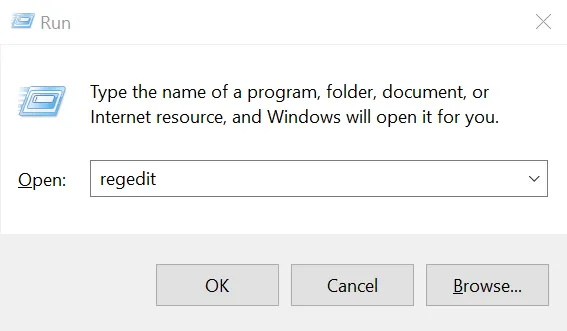
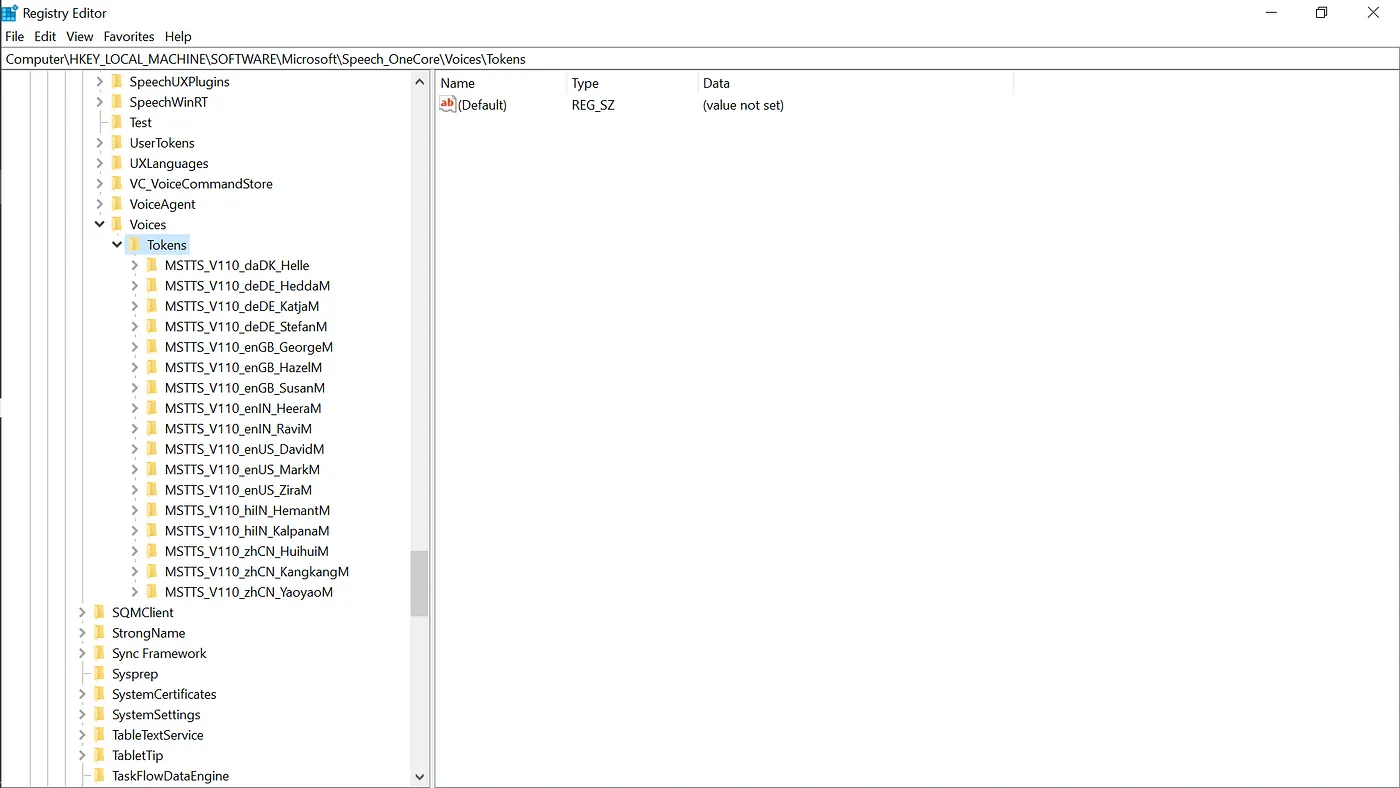
- Navigate to the TTS Settings – In the Registry Editor, navigate to the following key –
HKEY_LOCAL_MACHINE\SOFTWARE\Microsoft\SPEECH_OneCore\Voices\Tokens\
Following are some images representing how to reach to registry speech folder –


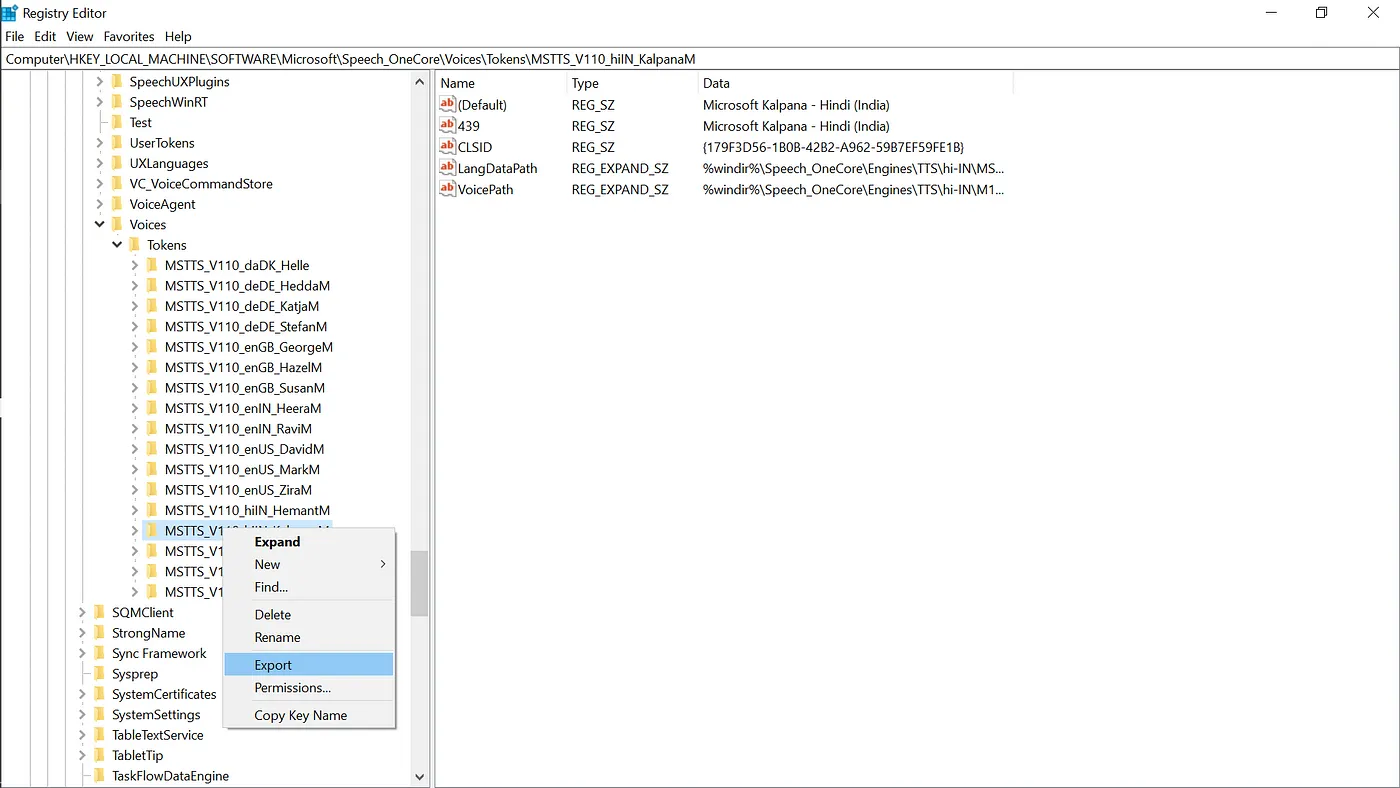
- Modify the Registry – Replace the original file with the below file –
Original File: Windows Registry Editor Version 5.00
[HKEY_LOCAL_MACHINE\SOFTWARE\Microsoft\Speech_OneCore\Voices\Tokens\MSTTS_V110_enUS_MarkM] @=”Microsoft Mark — English (United States)” “409”=”Microsoft Mark — English (United States)” “CLSID”=”{179F3D56–1B0B-42B2-A962–59B7EF59FE1B}” “LangDataPath”=hex(2):25,00,77,00,69,00,6e,00,64,00,69,00,72,00,25,00,5c,00,53,\ 00,70,00,65,00,65,00,63,00,68,00,5f,00,4f,00,6e,00,65,00,43,00,6f,00,72,00,\ 65,00,5c,00,45,00,6e,00,67,00,69,00,6e,00,65,00,73,00,5c,00,54,00,54,00,53,\ 00,5c,00,65,00,6e,00,2d,00,55,00,53,00,5c,00,4d,00,53,00,54,00,54,00,53,00,\ 4c,00,6f,00,63,00,65,00,6e,00,55,00,53,00,2e,00,64,00,61,00,74,00,00,00 “VoicePath”=hex(2):25,00,77,00,69,00,6e,00,64,00,69,00,72,00,25,00,5c,00,53,00,\ 70,00,65,00,65,00,63,00,68,00,5f,00,4f,00,6e,00,65,00,43,00,6f,00,72,00,65,\ 00,5c,00,45,00,6e,00,67,00,69,00,6e,00,65,00,73,00,5c,00,54,00,54,00,53,00,\ 5c,00,65,00,6e,00,2d,00,55,00,53,00,5c,00,4d,00,31,00,30,00,33,00,33,00,4d,\ 00,61,00,72,00,6b,00,00,00 [HKEY_LOCAL_MACHINE\SOFTWARE\Microsoft\Speech_OneCore\Voices\Tokens\MSTTS_V110_enUS_MarkM\Attributes] “Age”=”Adult” “DataVersion”=”11.0.2013.1022” “Gender”=”Male” “Language”=”409” “Name”=”Microsoft Mark” “SharedPronunciation”=”” “Vendor”=”Microsoft” “Version”=”11.0”
Modified File: Windows Registry Editor Version 5.00
[HKEY_LOCAL_MACHINE\SOFTWARE\Microsoft\Speech\Voices\Tokens\MSTTS_V110_enUS_MarkM] @=”Microsoft Mark — English (United States)” “409”=”Microsoft Mark — English (United States)” “CLSID”=”{179F3D56–1B0B-42B2-A962–59B7EF59FE1B}” “LangDataPath”=hex(2):25,00,77,00,69,00,6e,00,64,00,69,00,72,00,25,00,5c,00,53,\ 00,70,00,65,00,65,00,63,00,68,00,5f,00,4f,00,6e,00,65,00,43,00,6f,00,72,00,\ 65,00,5c,00,45,00,6e,00,67,00,69,00,6e,00,65,00,73,00,5c,00,54,00,54,00,53,\ 00,5c,00,65,00,6e,00,2d,00,55,00,53,00,5c,00,4d,00,53,00,54,00,54,00,53,00,\ 4c,00,6f,00,63,00,65,00,6e,00,55,00,53,00,2e,00,64,00,61,00,74,00,00,00 “VoicePath”=hex(2):25,00,77,00,69,00,6e,00,64,00,69,00,72,00,25,00,5c,00,53,00,\ 70,00,65,00,65,00,63,00,68,00,5f,00,4f,00,6e,00,65,00,43,00,6f,00,72,00,65,\ 00,5c,00,45,00,6e,00,67,00,69,00,6e,00,65,00,73,00,5c,00,54,00,54,00,53,00,\ 5c,00,65,00,6e,00,2d,00,55,00,53,00,5c,00,4d,00,31,00,30,00,33,00,33,00,4d,\ 00,61,00,72,00,6b,00,00,00 [HKEY_LOCAL_MACHINE\SOFTWARE\Microsoft\Speech\Voices\Tokens\MSTTS_V110_enUS_MarkM\Attributes] “Age”=”Adult” “DataVersion”=”11.0.2013.1022” “Gender”=”Male” “Language”=”409” “Name”=”Microsoft Mark” “SharedPronunciation”=”” “Vendor”=”Microsoft” “Version”=”11.0″ [HKEY_LOCAL_MACHINE\SOFTWARE\WOW6432Node\Microsoft\SPEECH\Voices\Tokens\MSTTS_V110_enUS_MarkM] @=”Microsoft Mark — English (United States)” “409”=”Microsoft Mark — English (United States)” “CLSID”=”{179F3D56–1B0B-42B2-A962–59B7EF59FE1B}” “LangDataPath”=hex(2):25,00,77,00,69,00,6e,00,64,00,69,00,72,00,25,00,5c,00,53,\ 00,70,00,65,00,65,00,63,00,68,00,5f,00,4f,00,6e,00,65,00,43,00,6f,00,72,00,\ 65,00,5c,00,45,00,6e,00,67,00,69,00,6e,00,65,00,73,00,5c,00,54,00,54,00,53,\ 00,5c,00,65,00,6e,00,2d,00,55,00,53,00,5c,00,4d,00,53,00,54,00,54,00,53,00,\ 4c,00,6f,00,63,00,65,00,6e,00,55,00,53,00,2e,00,64,00,61,00,74,00,00,00 “VoicePath”=hex(2):25,00,77,00,69,00,6e,00,64,00,69,00,72,00,25,00,5c,00,53,00,\ 70,00,65,00,65,00,63,00,68,00,5f,00,4f,00,6e,00,65,00,43,00,6f,00,72,00,65,\ 00,5c,00,45,00,6e,00,67,00,69,00,6e,00,65,00,73,00,5c,00,54,00,54,00,53,00,\ 5c,00,65,00,6e,00,2d,00,55,00,53,00,5c,00,4d,00,31,00,30,00,33,00,33,00,4d,\ 00,61,00,72,00,6b,00,00,00 [HKEY_LOCAL_MACHINE\SOFTWARE\WOW6432Node\Microsoft\SPEECH\Voices\Tokens\MSTTS_V110_enUS_MarkM\Attributes] “Age”=”Adult” “DataVersion”=”11.0.2013.1022” “Gender”=”Male” “Language”=”409” “Name”=”Microsoft Mark” “SharedPronunciation”=”” “Vendor”=”Microsoft” “Version”=”11.0”
And done! By following these steps, you would be able to successfully install the Hindi language pack on your Windows system. If you encounter any issues or have further questions, refer to the official Microsoft support documentation.
For a visual walkthrough of the process, you can watch https://www.youtube.com/watch?v=x4W2HhqXM9s that demonstrates the steps required for enabling Hindi TTS for windows.
 Josh Software